
Keeping you and your money safe
A security token protects you when you use online and mobile banking. It helps to keep you safe against fraud and other security threats. With it, you can verify your identity and access the full range of our services. It can be digital or physical.
What types of security tokens are available?
You have two options to choose from: a Digital Secure Key or a physical Security Device.
The Digital Secure Key is built into the HSBC Singapore app, so you can do all your banking from your phone without needing to carry an extra item.
How to activate your security token
Digital Secure Key
New to mobile banking and downloading the app for the first time? Your Digital Secure Key will be activated automatically.
But if you’re upgrading from a Security Device, you’ll need to activate your Digital Secure Key in the app.
To do this, you can follow the video or these steps.
- Make sure you're on the latest version of the HSBC Singapore app, and log on.
- Once prompted, choose 'Continue'.
Your Digital Secure Key is now activated. If you have a Security Device, we’ll deactivate it immediately.
You can also enable Touch ID, Face ID or Fingerprint ID to generate your security codes. This way, you can generate them with just a touch or a smile[@biometric-devices].
Security Device
To activate your Security Device, you can follow the video or these steps.
- Log on to online banking.
- Once prompted, choose 'Activate now'.
If you're a new HSBC customer, you'll need to scroll down and open the 'Don't have compatible device' section.
How to use your security token
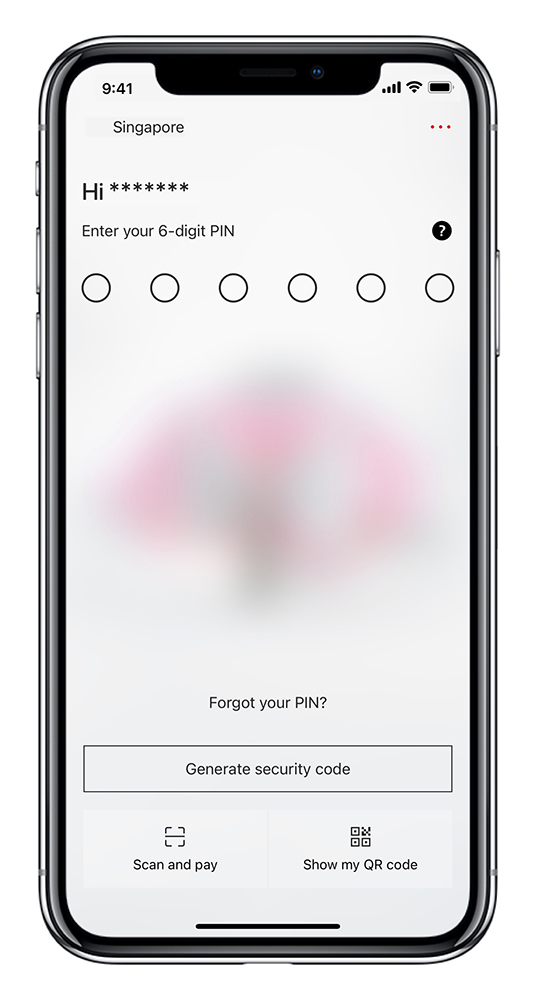
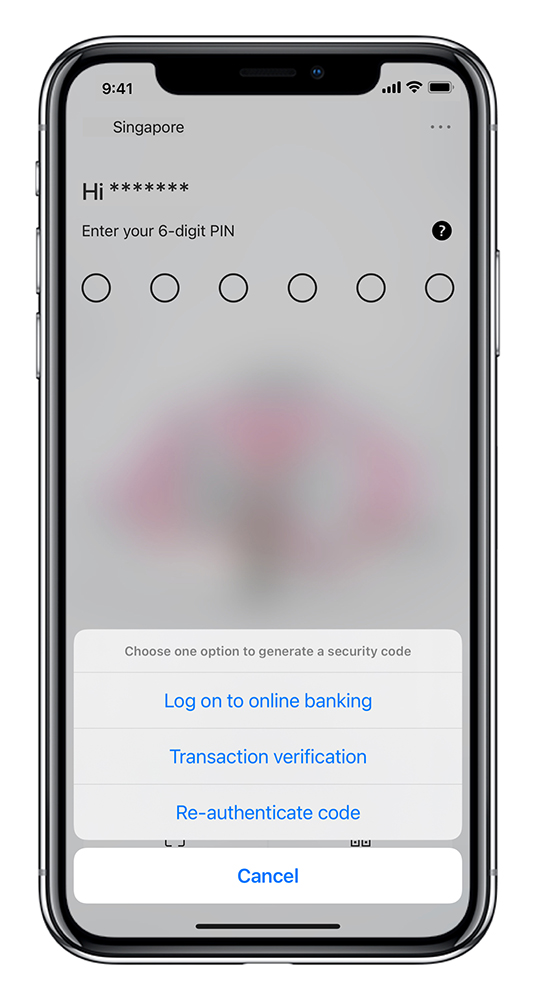
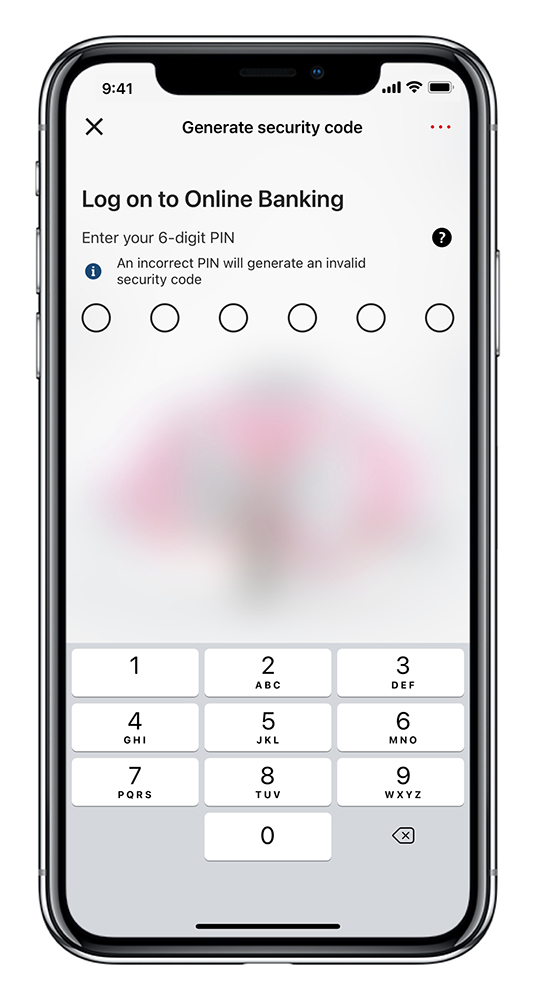
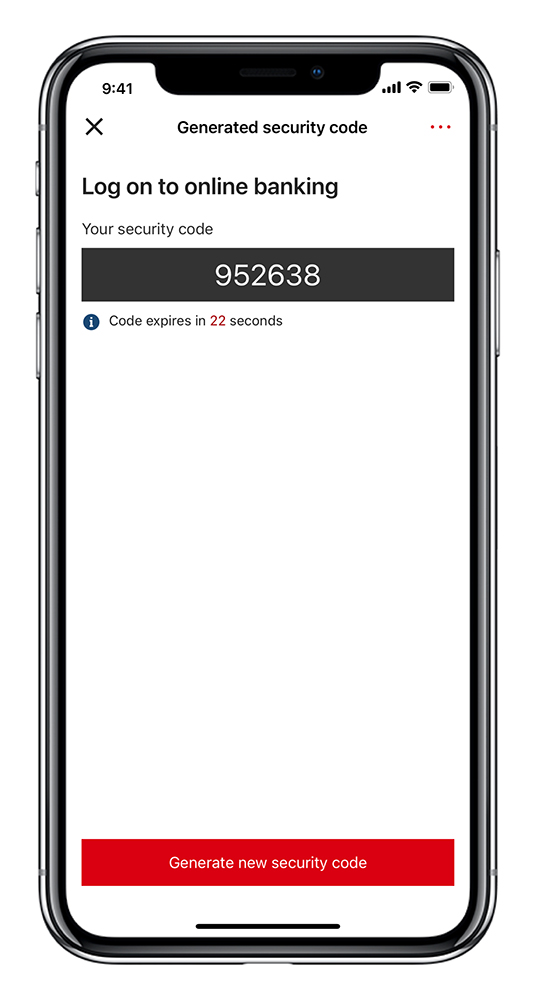
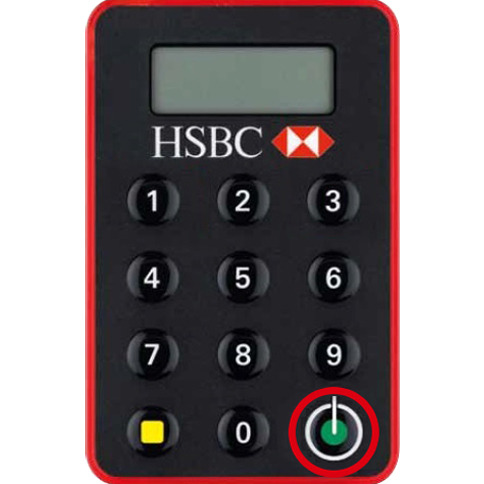
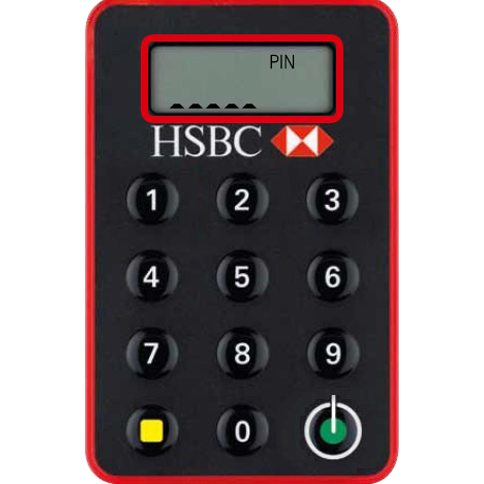
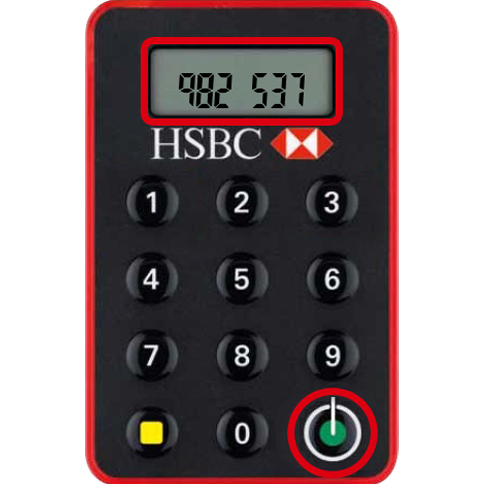
You can use your security token to generate a security code. With it, you can log on to online banking, and you can approve certain transactions. This code also lets you make updates to your account.
Frequently asked questions
Get started with more secure banking
Digital Secure Key
Digital Secure Key is on the HSBC Singapore app. Download the app from the App Store or Google Play Store.
Or scan the QR code to download the HSBC Singapore app.

Security Device
To ask for a new Security Device, call us on 1800 4722 669 in Singapore, or +65 6 4722 669 from overseas.
Or come visit us at your nearest branch.